
For MetaHumans created in Unreal Editor 5.6+, muscles controlling the body are disabled in live animation for UE 5.6 only, so head movements will not be visible while editing expressions. This has been fixed in UE 5.7+.
The Modes tab of the plugin provides the functionality to create, edit and delete behavior modes. For the essential guide to setting up behavior modes, see Behavior Modes.
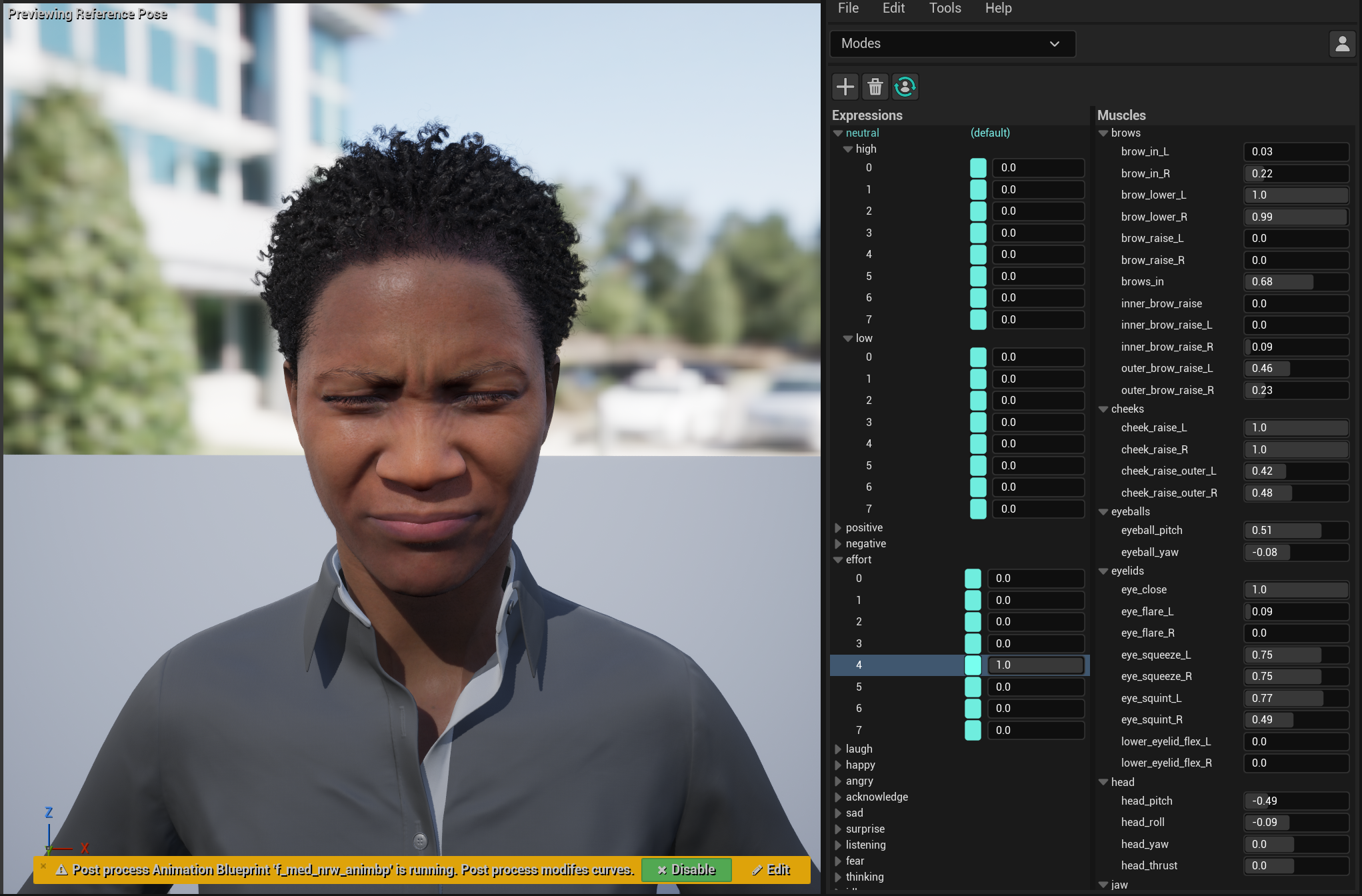
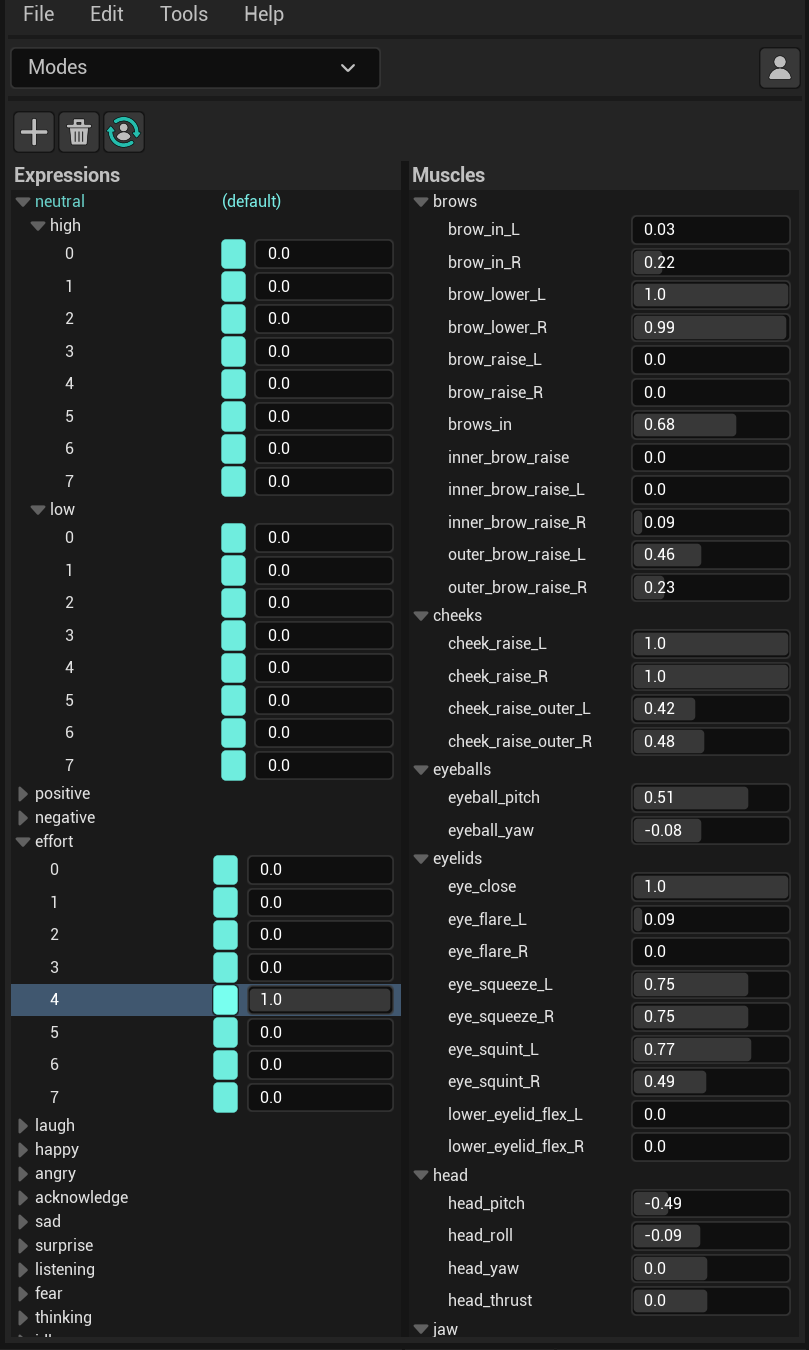
The interface is divided into three sections, with the buttons at the top and two adjacent trees below them. On the left are the behavior modes, and on the right are the muscles that control the face. Modes are outlined in a hierarchy similar to that of the muscles, with each mode expanding into the set of expressions it contains. In the case of bi-tonal modes, there are high and low subsets of expressions.
Adding modes
To add a new behavior mode, click Add mode (.

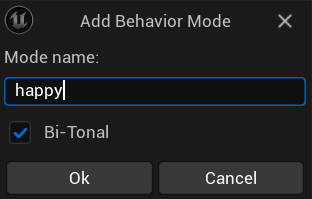
A prompt will appear where you can type the name of the mode and decide whether it will be bi-tonal.
Removing modes
To remove a mode, select the mode and click Delete.

Setting the default mode
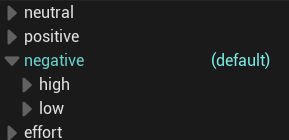
To set the default mode, right-click the mode, and press Set default mode from the context menu.
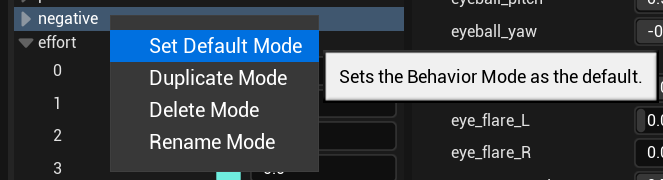
You should now see the mode name with a different color, and the text “(default)” to the right of it.
Duplicating modes
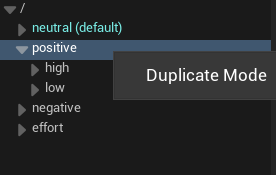
You can duplicate a mode by right-clicking on it, and pressing Duplicate mode from the context menu.
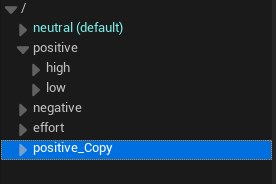
You will find the duplicated mode appended to the end of the mode list, with “_Copy” added to the name.
Creating expression poses
An expression is simply a pose constructed out of various muscles. See Expression definitions for a conceptual guide to expressions.
The general method of creating expressions is to hand-tune the muscle sliders – on the left side of the panel – to come up with a pose. You can also use an existing expression as a starting point (scaled to some degree), and edit from there.
Remember, whereas muscles are composed out of the rig’s animation targets, an expression is composed out of the muscles. If you create a pose out of the rig controls directly, it cannot be saved as an expression.
Retargeting expression poses
Although rig poses cannot be saved directly as expressions, it is possible to retargeted poses on the rig into poses of the muscles, and from there use them as expressions. SGX Studio provides a tool which finds the best fit of the muscle activations to a current pose of the animation targets on the rig. To use this, simply put the character in the pose you wish to import, and then press Retarget pose.

This will result in the muscles being adjusted to estimate the closest match in muscle activations to the given rig pose. This only works if the controls you use to create the pose are included among the animation targets.
Adding expressions
To add an expression, follow these steps:
-
Select the mode to which you want to add the expression. (If the mode is bi-tonal, click either the high or low subgroup.)
-
Create the expression pose using the muscles as described above, or leave in neutral pose to create new empty expression.
-
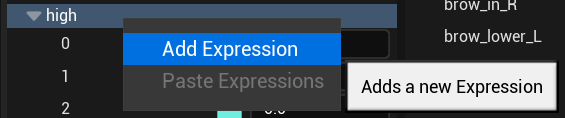
Click right-click the mode or subgroup and click Add expression from the context menu.
Add expression -
The new expression should now appear under the selected group and will be automatically named by an index referring to its position in the series of expressions. If the expression was created with a pose, the Set Pose button will be teal, otherwise it will be grey. It can also be renamed.
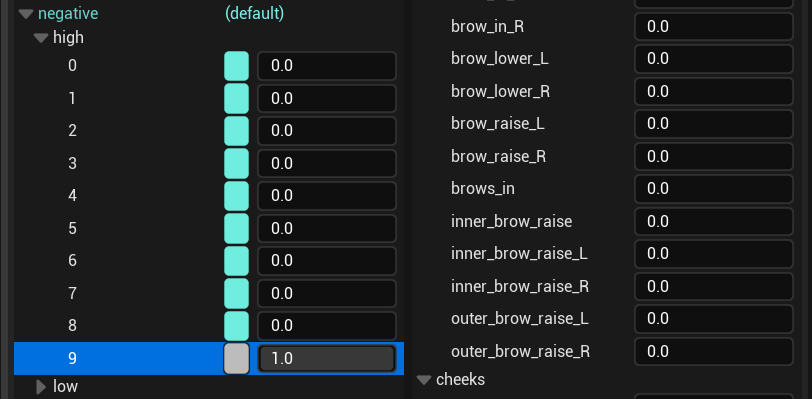
Editing expressions
To edit an existing expression:
-
Select the expression.
-
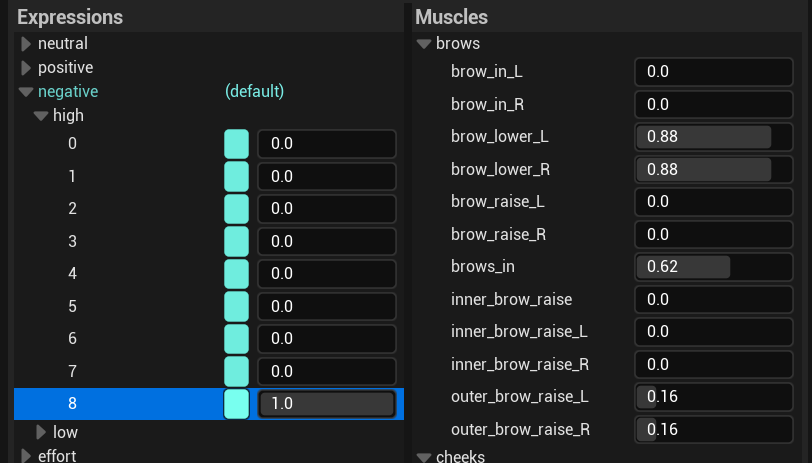
If you would like to tweak the existing pose, set the expression scale to some non-zero value. If you would like to recreate the expression from scratch, set the scale to zero.
-
Edit the muscle activations on the left-hand side of the tab.
-
Click the Set Pose button (Teal/Grey), or right-click the expression, and Click Set expression in the context menu.
Removing expressions
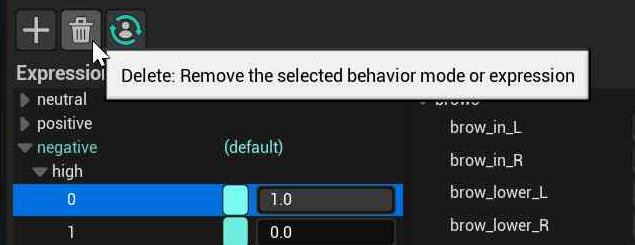
To remove an expression, simply select the expression and press Delete.
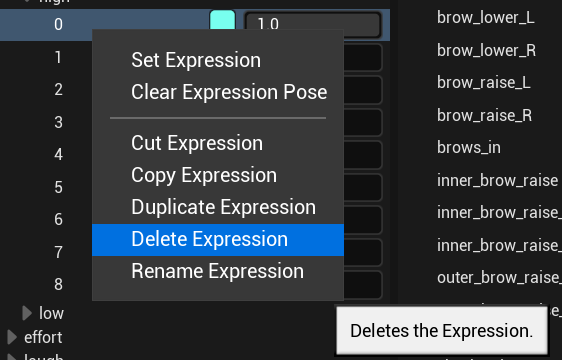
Expressions can also be removed from the context menu.
Renaming expressions
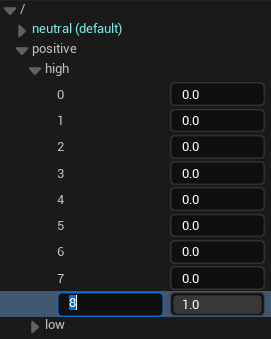
Expressions can be renamed after creation by clicking once on an already selected expression and typing a new name.
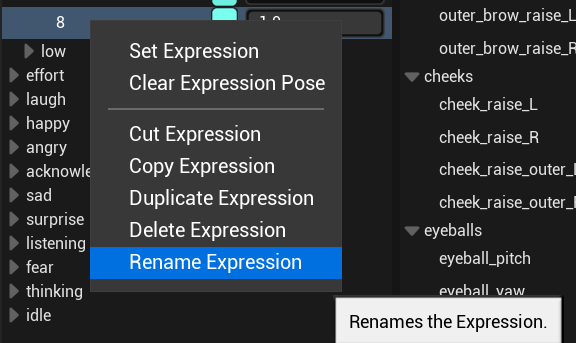
Expressions can also be renamed from the context menu.
Copying, cutting, pasting and duplicating expressions
Right-clicking on an expression brings up a context menu with options Copy Expression, Cut Expression, and Duplicate Expression.
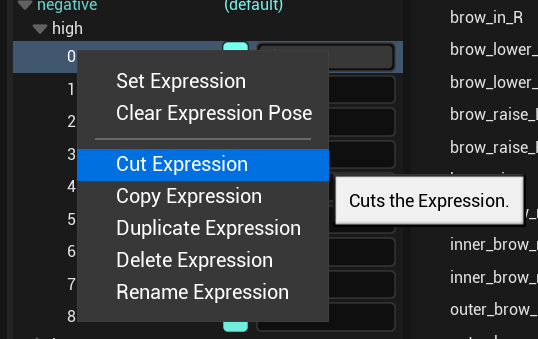
Selecting Copy expression adds the selected expression to the clipboard. Cut expression does the same and also removes the expression from its mode. Once an expression is on the clipboard, it may be pasted into another mode. To paste the expression, right-click on another mode (or tone subgroup in the case of bi-tonal modes), and click Paste expressions in the context menu.
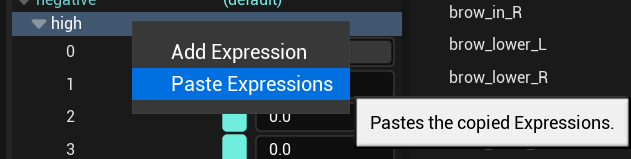
If the name of the pasted expression already exists in the group, then an underscore will be added to the beginning of the expression’s name. For example “0” is pasted as “_0”.
Selecting Duplicate expression in the context menu is the equivalent of copying the expression and pasting the copy into the same group.