Installation
Follow these instructions to install the SGX Runtime Unreal Engine 5 Plugin:
-
Download and unzip the latest version of SGX Runtime UE5.
-
Place the plugin in either the project or engine plugin directory.
-
Navigate to Edit > Plugins, locate SGX|FaceFX and check the box to enable the plugin:
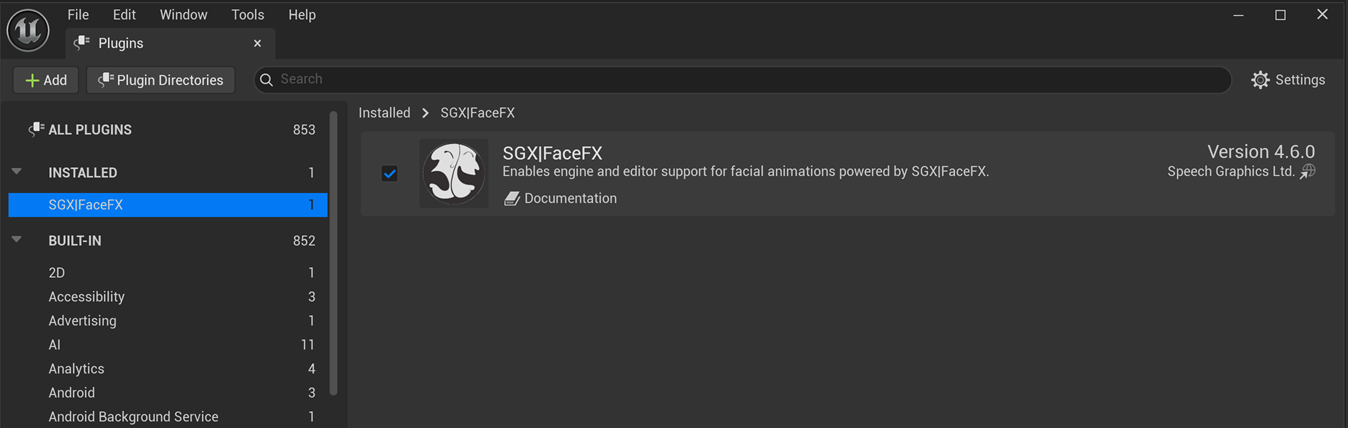
You will need to restart the editor after enabling or disabling the plugin.
Configuration
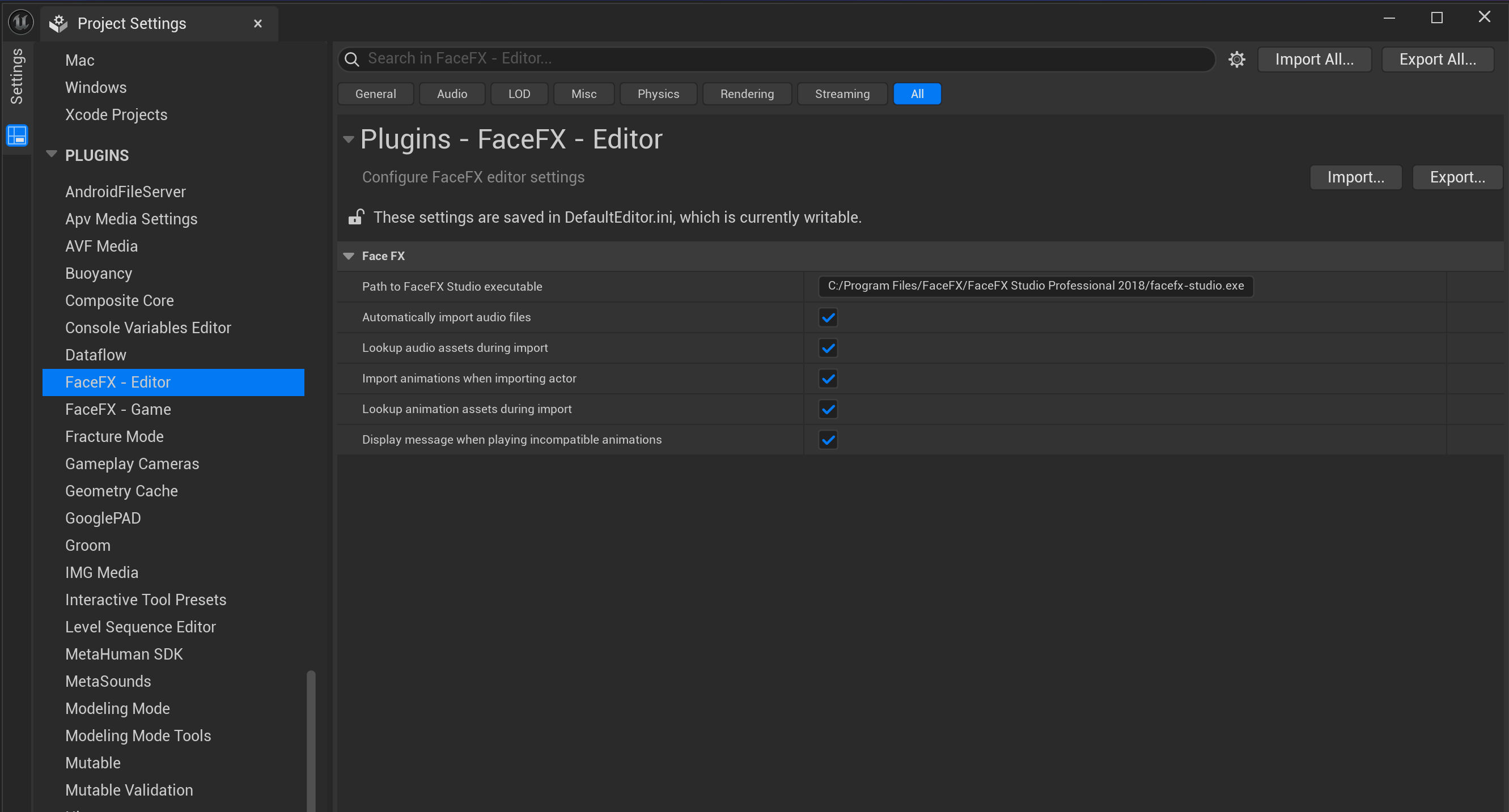
The SGX Runtime Unreal Engine 5 Plugin can be configured with several options contained in the Plugins section of the Project Settings in the Unreal Editor.
Editor
Path to FaceFX Studio executable
The absolute path to the FaceFX Studio installation. This is irrelevant for SGX.
Automatically import audio files
Indicates if the audio data (.wav files only) should be automatically imported during the animation import process.
Lookup audio assets during import
Indicates if the import should search through all existing USoundWave assets and look for an asset that was generated with the linked sound source file (per animation). If one is found it will be used instead of creating a new USoundWave asset for the .wav file.
Note: This might affect performance when there are a lot of USoundWave assets.
Import animations when importing actor
Indicates if animations should be imported during actor import. If set to false only the FaceFX Actor asset will be imported or updated.
Lookup animation assets during import
Indicates if the import should search through all existing UFaceFXAnimation assets and look for an asset that was generated with the linked .ffxanim source file. If one is found it will be used instead of creating a new UFaceFXAnimation asset for the .ffxanim file.
Note: This might affect performance when there are a lot of UFaceFXAnimation assets.
Display message when playing incompatible animations
Indicates if the editor should show a warning message when a UFaceFXAnimation is attempted to be played on an incompatible UFaceFXCharacter.
Game
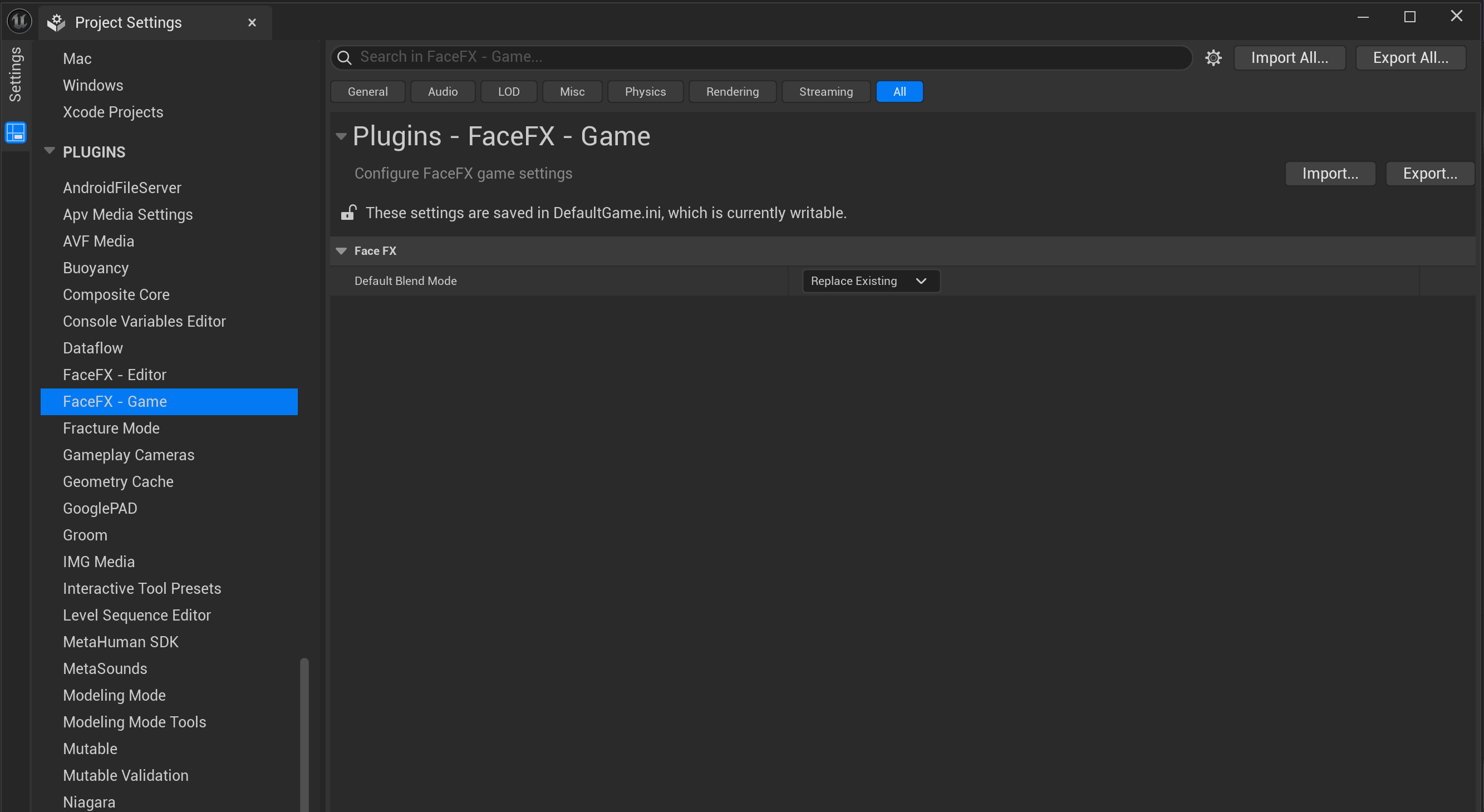
Default Blend Mode
A global blend mode setting. This global setting can be overridden in a FaceFX Actor.
-
Replace Existing
Bone transforms replace the existing transforms.
-
Add to Existing
Bone transforms are additive and add to the existing transforms.